
How to Create & Load a Revit Title Block (Guide)
19/03/2026
How to Add 2D People, Trees & Furniture to Revit Elevations
26/03/2026
- Is your Revit model crashing constantly?
- Are your floor plans lagging every time you zoom?
Usually, overly complex 3D families are the main culprits. Dealing with heavy, unoptimized files wastes hours of valuable billable time. Furthermore, it frustrates your entire design team.
Naturally, the key to a lightweight model is knowing exactly when to use 2D versus 3D elements. In this comprehensive guide by ALBE Studio, we will break down the Revit family hierarchy.
First, we will explain system versus component families. Next, we will explore 3D families. Finally, we will dive into the power of 2D detail components to upgrade your architectural BIM workflows.
System Families vs. Component Families
Before diving into dimensions, you must understand how Revit categorizes objects. According to global Autodesk BIM standards, there are two primary categories:
- System Families: These are built directly into the software environment. You cannot save them as external files. Examples include walls, floors, roofs, and ceilings. You simply duplicate and edit them inside your project.
- Component Families: These are external files saved with an .rfa extension. You must manually load them into your project. Examples include furniture, doors, trees, and title blocks. Component families can be either 2D or 3D.
What are 3D Component Families?
3D families contain physical, modeled geometry. Therefore, they appear in all views, including plans, sections, and 3D perspectives. They are essential for clash detection and realistic rendering.
Here are the most common types of 3D families:
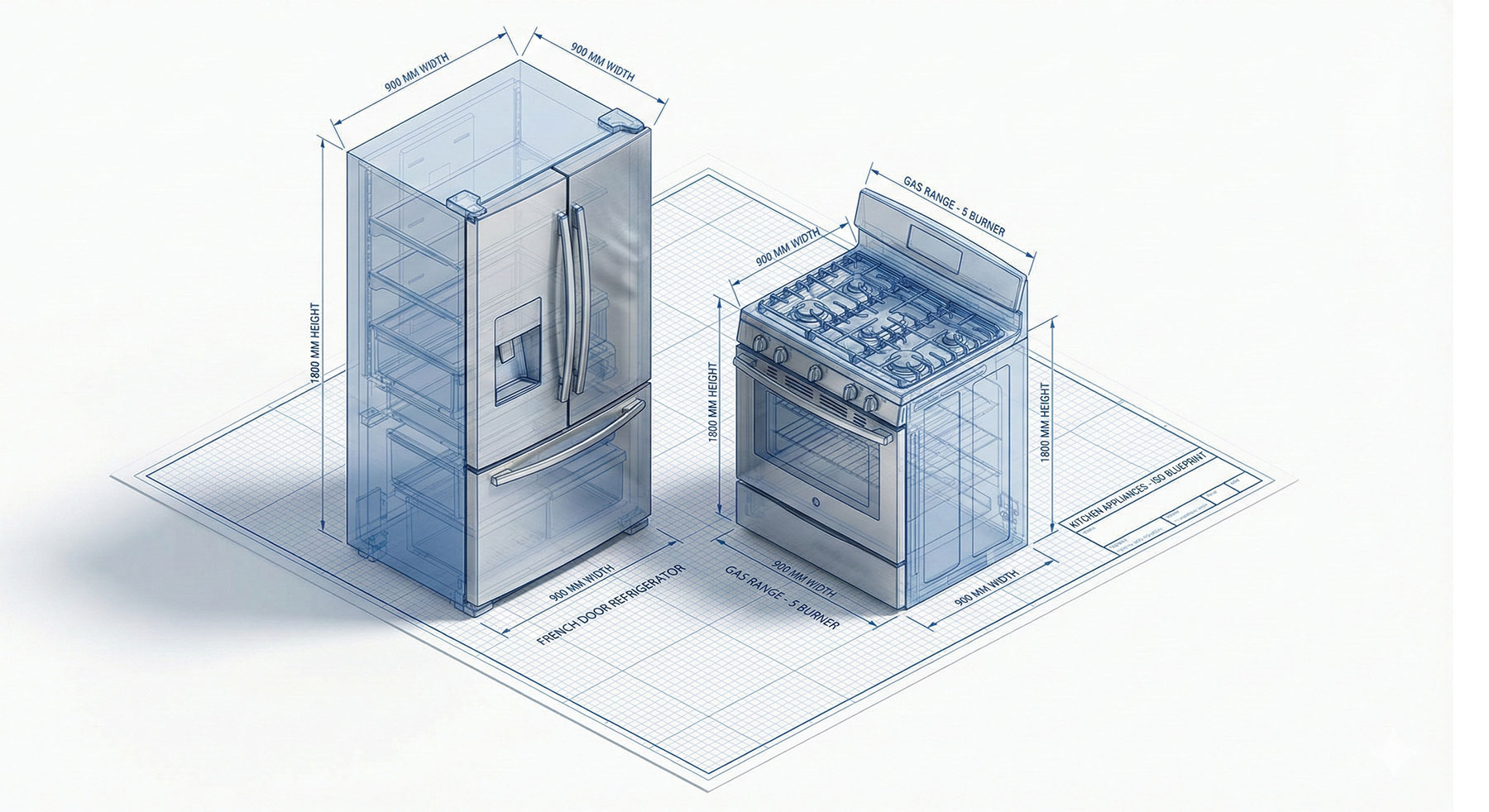
- Furniture & Casework: Desks, chairs, and kitchen cabinets.
- Lighting Fixtures: Modeled lamps that actually emit digital light.
- Specialty Equipment: Complex items like elevators or gym machines.
💡 Pro Tip for BIM Managers: Never use heavily detailed 3D trees or high-poly furniture in your working model. Consequently, your file size will explode. Always use simplified 3D shapes or lightweight 2D alternatives for construction documents.
What are 2D Component Families?
Unlike 3D geometry, 2D families only exist in the specific view where you place them. Therefore, they are incredibly lightweight. They are the secret weapon for fast, professional interior design presentations.
Here are the crucial types of 2D families you must master:
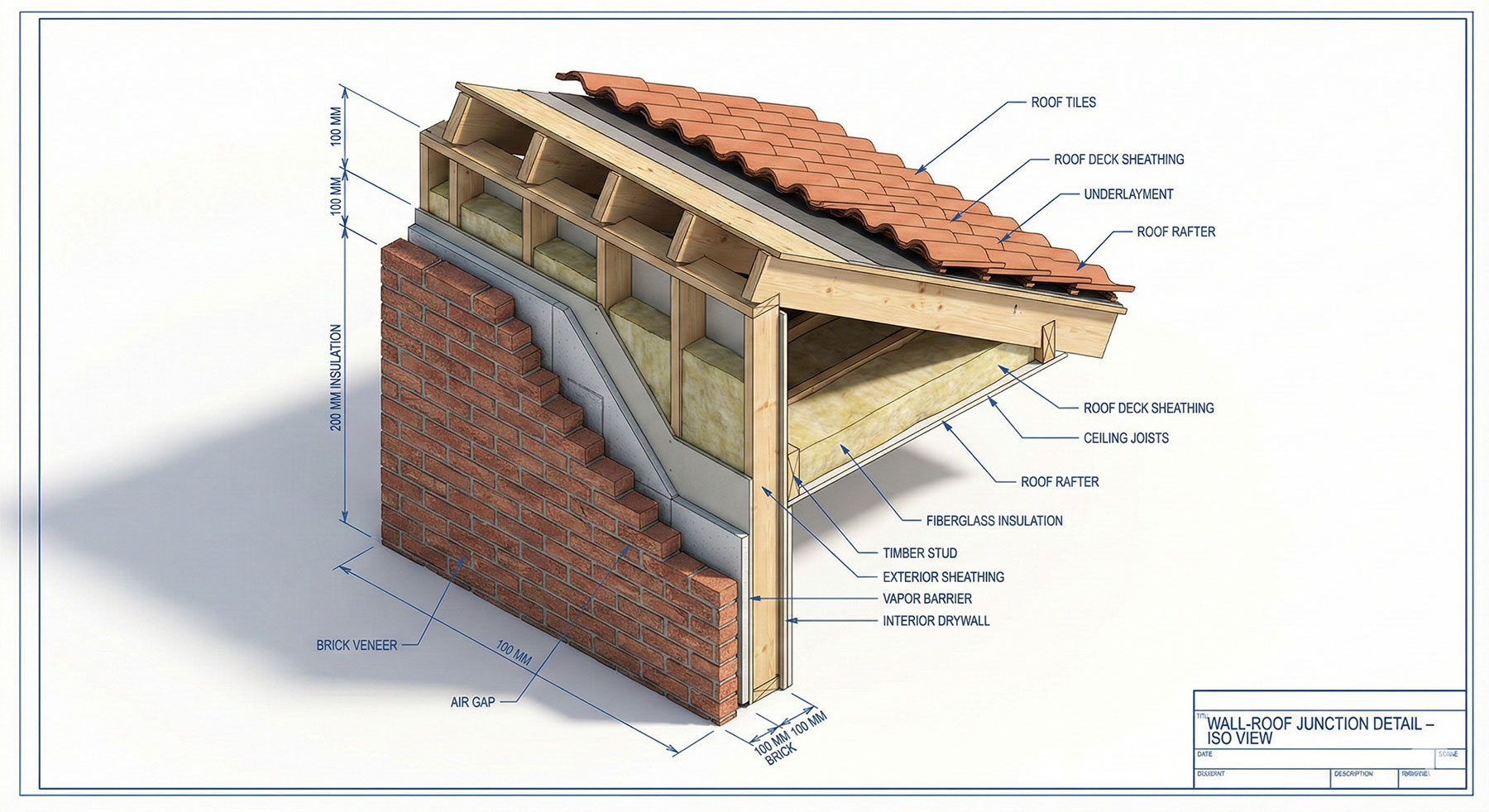
- Detail Components: These represent specific building materials in sections or callouts. For example, 2D bricks, steel beams, or waterproofing membranes. You access them via Annotate → Detail Component.
- Annotation Symbols: These are view-specific graphic icons. North arrows, electrical switches, and level tags fall into this category. They automatically scale with your view. You access them via Annotate → Symbol.
- Profiles: A profile is a simple 2D loop. Revit extrudes this 2D loop to create 3D forms like wall sweeps, cornices, or stair nosings.
- Title Blocks: As discussed in our previous guides, your Revit Title Block is essentially a highly intelligent 2D family.

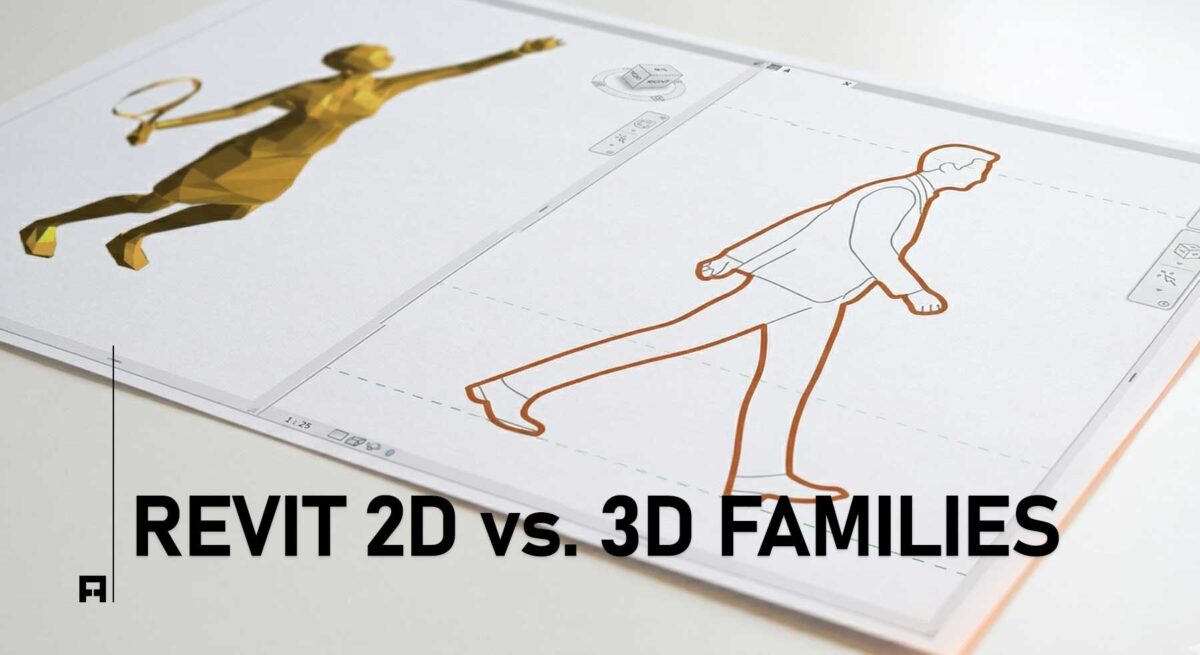
Revit 2D vs 3D Families: The Ultimate BIM Guide
- Replacing heavy 3D furniture with clean 2D Detail Components instantly speeds up your Revit model.
The Missing Link: Your 2D Library
Building a high-quality 2D library from scratch takes months. You must create masking regions, manage line weights, and set up parametric dimensions. If your floor plans look messy or your file is too slow, you need a professional asset library.
Instantly Speed Up Your Workflow
Why spend hundreds of hours drafting 2D furniture and symbols? ALBE Studio has engineered the ultimate lightweight library. Our Premium 2D Families and Entourage packs keep your models incredibly fast while delivering magazine-quality aesthetics.
Next Steps for Your Workflow
Mastering the balance between 2D and 3D data is a critical architectural skill. Before you model another highly detailed 3D chair, ask yourself if a 2D component would suffice.
Are you unsure if your current families are optimized? Download our Ultimate Revit Template Checklist (Free PDF) to audit your BIM standards. Furthermore, discover more high-end digital assets in the ALBE Studio Shop.