
ALBE Purchase & Access Guide
06/03/2026
How to Transfer Revit Standards & Use a Gallery File
12/03/2026
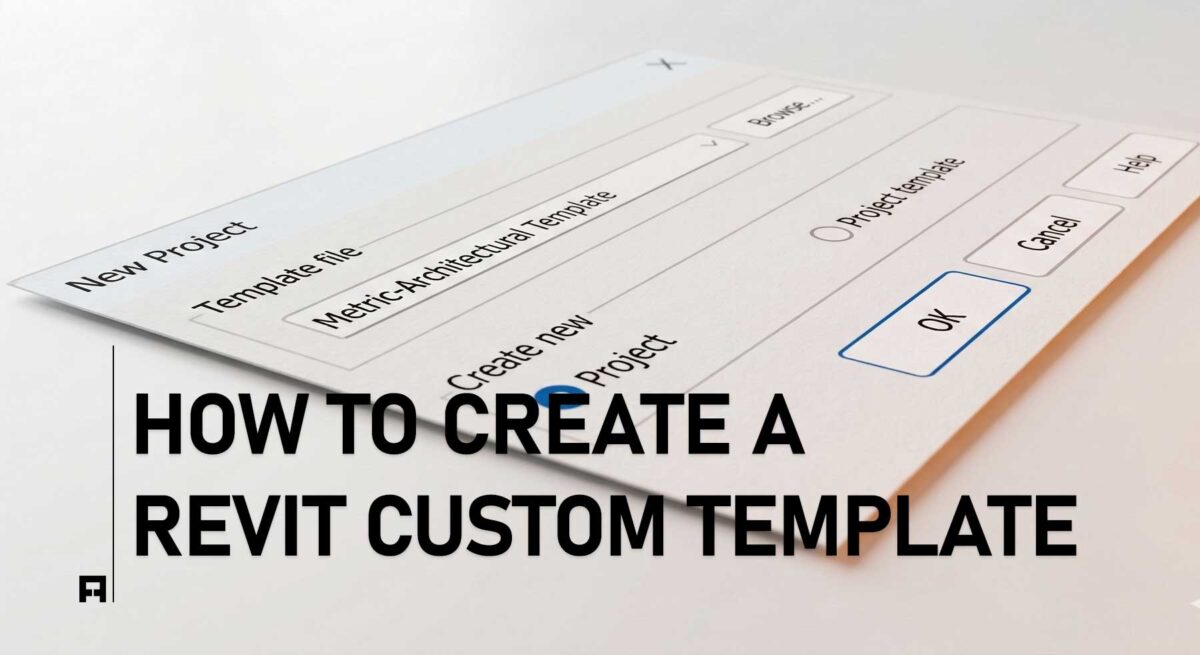
Starting a new project in Revit from a blank page is one of the most common workflow mistakes. Resetting project units, reloading title blocks, and configuring line weights from scratch can consume hours of valuable billable time before you even draw your first wall.
The definitive solution to this technical friction is a properly engineered Revit Template. In this guide by ALBE Studio, we will explore what a template is, why it is the backbone of professional Revit for Architecture workflows, and how you can create your first custom template to streamline your design process.
What is a Revit Template (.rte)?
In the broader context of Building Information Modelling (BIM), a template is a foundational file saved with an .rte extension. Unlike standard project files (.rvt) that contain your 3D building geometry, a template serves as the starting environment. It contains your office standards, pre-loaded families, graphic settings, and view organizations.
💡 Pro Tip for BIM Managers: Never let your team start a project using the default Autodesk templates. A custom template is the first, non-negotiable step toward true studio automation and graphic consistency.
Why Default Templates Fail
If you have ever wondered why default Revit templates fail for high-end architecture, it is because they are built to be generic. A custom template offers three major advantages:
- Eliminates Repetitive Tasks: Wall types, dimensions, and text styles are already loaded.
- Aesthetic Consistency: Every drawing your studio exports will have a unified, professional graphic signature.
- Reduced Errors: Pre-configured naming conventions ensure accuracy across the team.
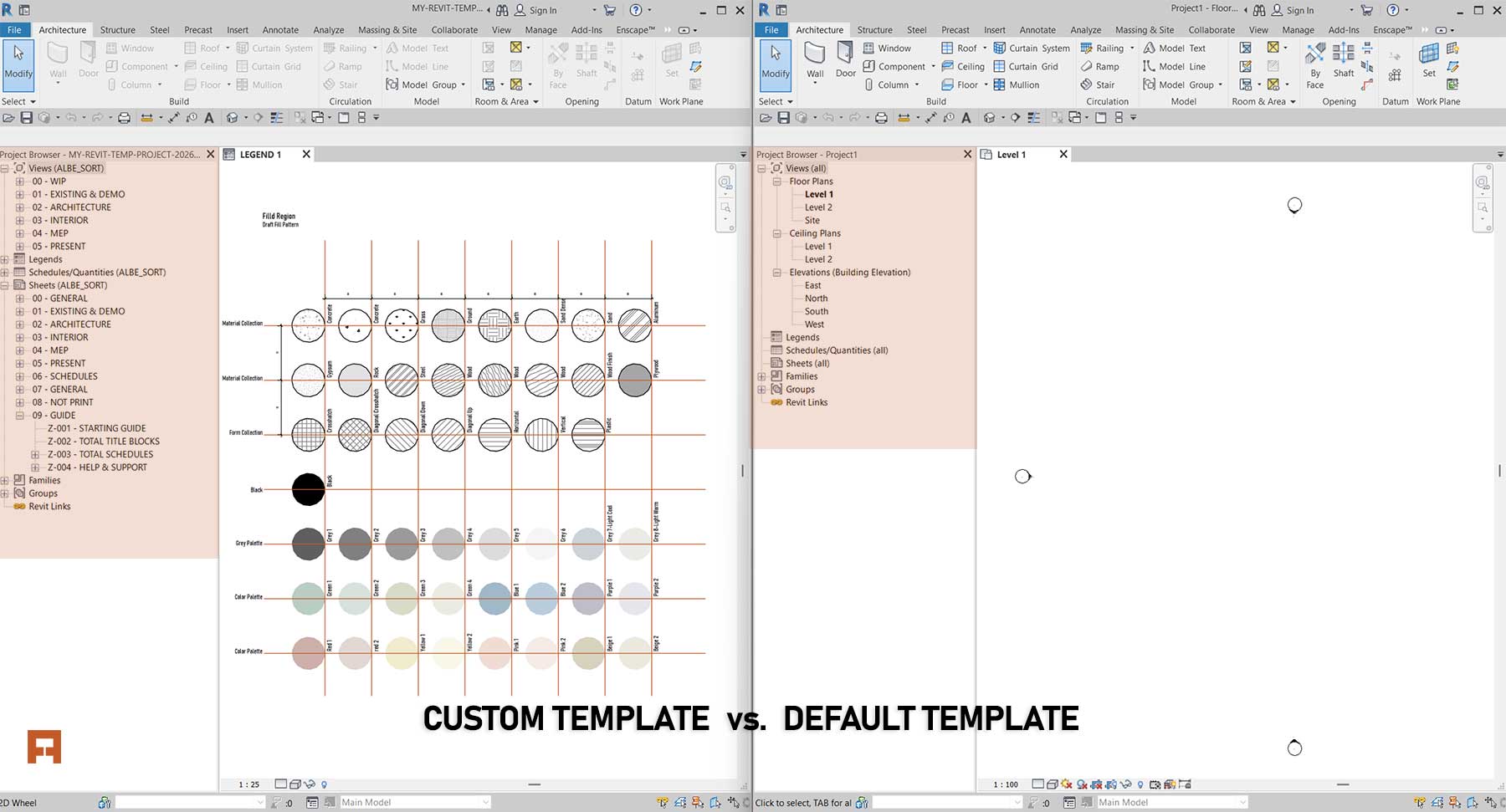
Custom Revit Template vs Default Revit Template
A well-organized custom template instantly cleans up your workspace.
How to Create a Revit Template: Step-by-Step
While building a robust system requires deep technical knowledge, creating a basic Metric Revit Template or Imperial Revit Template is straightforward.
Follow these steps in the software:
- Start with a Blank File: Navigate to the main ribbon:
File → New → Project.
Select “None” for the template to start with a completely clean slate, then choose Metric or Imperial. - Set Project Units: Go to:
Manage → Settings → Project Units
Alternatively, simply type the shortcut UN. Set your preferred units for length and area. - Configure Line Styles or Line Pattern or Line Weight: Navigate to:
Manage → Additional Settings → Line styles.
This is crucial for aesthetic interior design workflows and crisp printing. - Configure Wall Types: Navigate to:
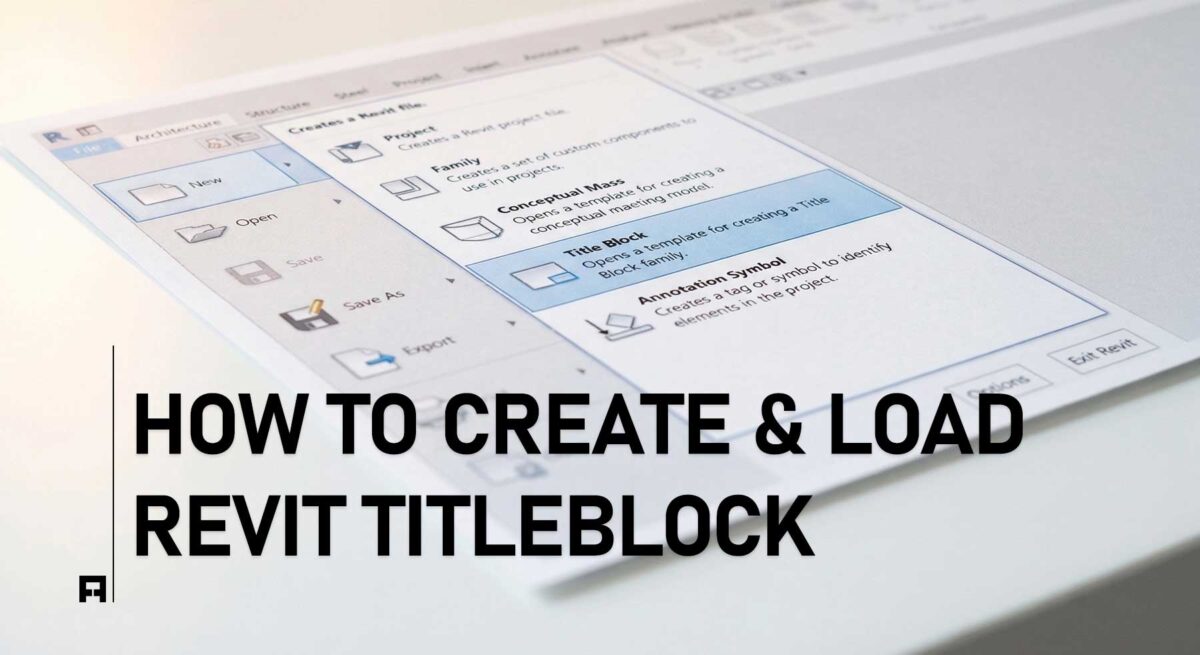
Architecture → Wall(WA) → Edit Type → Duplicate (New type name) → Setup wall - Load Essential Families: Go to the Insert tab and click Load Family to insert your studio’s custom title blocks and standard 2D entourage or 3D furniture
- Save Your Template: Once configured, save your environment:
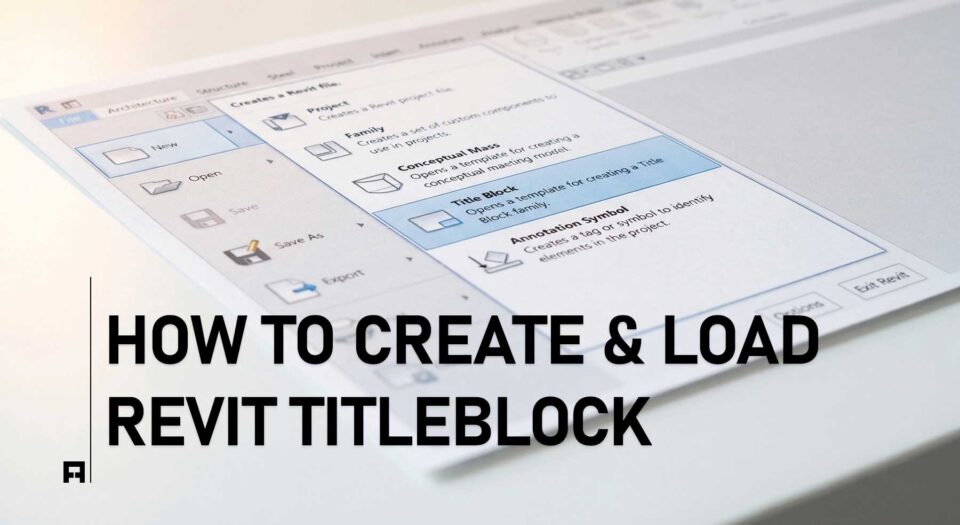
File → Save As → Template.
Save this file on your secure studio server so your team can access it.
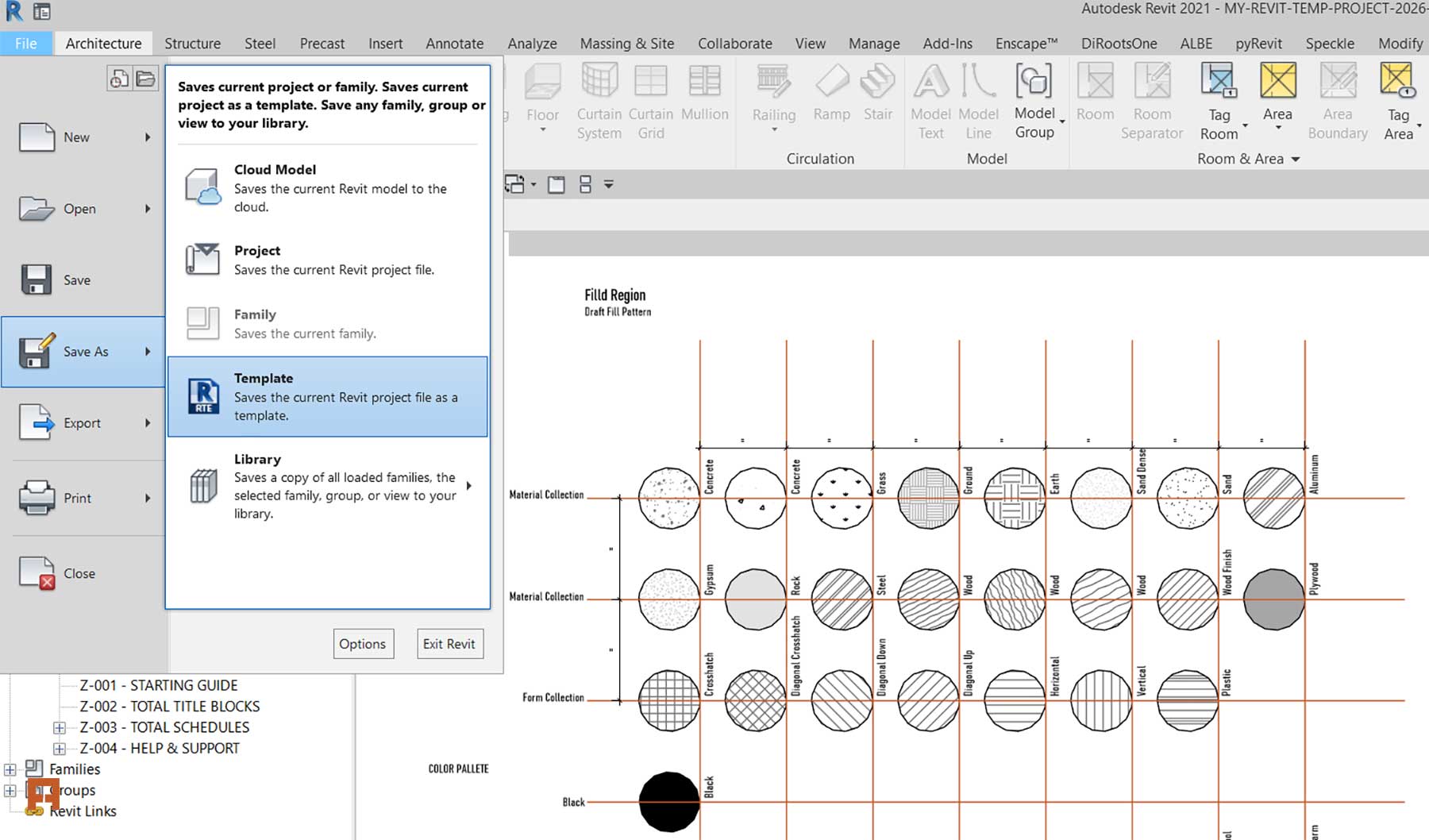
Saving a Revit Template file .rte from the File menu in Autodesk Revit software
Always save your base file as a Template (.rte), not a Project (.rvt).
The Hidden Cost of DIY Templates
Creating a basic template takes a few hours. However, engineering a professional-grade system—complete with Dynamo automation, advanced View Filters, custom Shared Parameters, and automated Sheet Creators—requires hundreds of non-billable hours and years of BIM Management experience.
Skip the Setup. Start Designing.
You do not have to reinvent the wheel. ALBE Studio has already engineered the ultimate solution. Bridge the gap between technical BIM standards and high-end presentation instantly with our complete system.
Next Steps for Your Studio
A template is a living document that should evolve with your architectural practice. If you are not ready to upgrade to a PRO system yet, we highly recommend auditing your current setup to see where you are losing valuable design time.
For more advanced tools, families, and workflow systems, explore our professional assets in the ALBE Studio Shop.