
How to Add a Logo & Brand Your Revit Title Block
17/03/2026
Revit 2D vs 3D Families: The Ultimate BIM Guide
24/03/2026
Every architectural project requires proper documentation. However, setting up presentation sheets manually takes massive effort.
In fact, drawing borders and updating project names individually wastes hours of valuable billable time. Furthermore, it often leads to unprofessional, inconsistent outputs.
Naturally, the best solution is an automated system. You should always use a parametric Revit Title Block. In this guide by ALBE Studio, we will explain exactly what a title block is. First, we will show you how to create one. Finally, we will explain how to load it seamlessly into your architectural BIM workflows.
What is a Revit Title Block?
A Revit title block is essentially a 2D family file (.rfa). It acts as the definitive border for your printed sheets. Importantly, it contains critical project data. For instance, it smartly displays the project name, sheet number, and your company logo. Consequently, it ensures strict brand consistency across all documents.
💡 Pro Tip for BIM Managers: Never use static text for project or sheet names. Instead, always use “Labels”. Labels automatically pull data from the global project settings. Therefore, when you update the project name once, every single sheet updates instantly.
How to Create a Title Block: Step-by-Step
Creating a basic title block requires the Family Editor. To meet global guidelines, like the National BIM Standards, your sheets must be perfectly sized. Here is how you start building one.

How to Create & Load a Revit Title Block (Guide)
- Start a New Family: First, navigate to the main software ribbon:
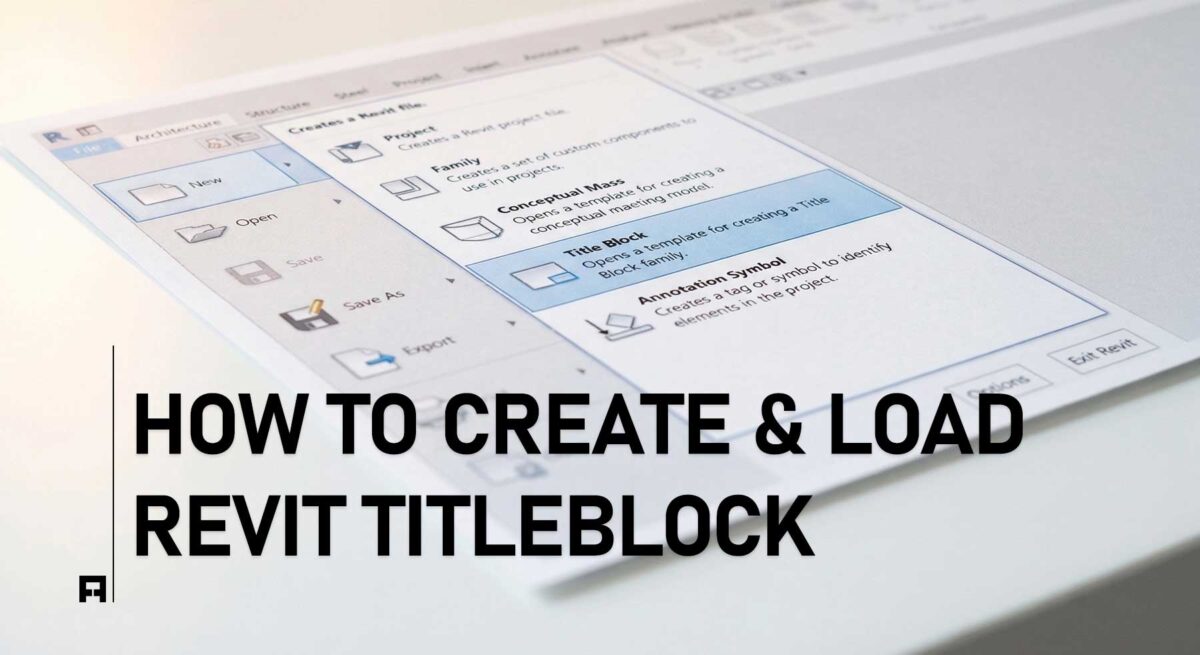
File → New → Title Block - Select the Size: A new window will appear. Next, choose your desired paper size (e.g., A1 metric or Arch D). Then, click the Open button.
- Draw the Borders: Use the Line tool to draw your layout structure. Go to:
>Create → Detail Panel → Line - Add Smart Labels: Now, add parametric text to automate your data. Go to:
Create → Text Panel → Label.
Click anywhere on the sheet. Finally, select parameters like “Sheet Name” and “Project Number”. - Save the Family: Once finished, save this file securely. Press Ctrl+S and name it something like “ALBE_A1_Titleblock.rfa”.
- Always use Labels instead of static Text to keep your architectural sheets fully parametric and automated.
How to Load a Title Block into Your Project
Once your family is saved, you must bring it into your active project. Fortunately, this loading process is incredibly fast.
- Open Your Project: First, ensure your main architectural model is active on your screen.
- Create a New Sheet: Navigate to the ribbon:
View → Sheet Composition Panel → Sheet - Load the Family: A dialog box will pop up immediately. Click the Load button.
- Select Your File: Next, browse your computer to find your saved “.rfa” file. Select it and click Open.
- Apply it: Finally, select your newly loaded title block from the list. Click OK. Your new sheet is now ready for aesthetic interior presentations.
The Missing Link: Your Studio’s Brand
Creating a simple box with lines is easy. However, designing a highly parametric, minimalist title block takes deep expertise. For example, you have to program complex revision schedules. Furthermore, you must ensure it scales perfectly across all paper sizes. If your current title block is clunky, you are actively harming your studio’s premium reputation.
Instantly Upgrade Your Presentations
Why spend days fighting with the Family Editor? ALBE Studio has already engineered the ultimate solution. Our Premium Title Blocks are minimal, fully parametric, and ready to use immediately. Therefore, you can start exporting luxurious, magazine-quality PDFs today.
Next Steps for Your Workflow
Mastering sheet creation is a fundamental architectural skill. Before you print your next major project, ensure your graphics are completely flawless. Are you unsure if your current sheets are optimized?
Download our Ultimate Revit Template Checklist (Free PDF) to audit your BIM standards. Furthermore, discover more high-end digital assets in the ALBE Studio Shop.