
How to Create a Custom Revit Template (Step-by-Step)
10/03/2026
How to Add a Logo & Brand Your Revit Title Block
17/03/2026
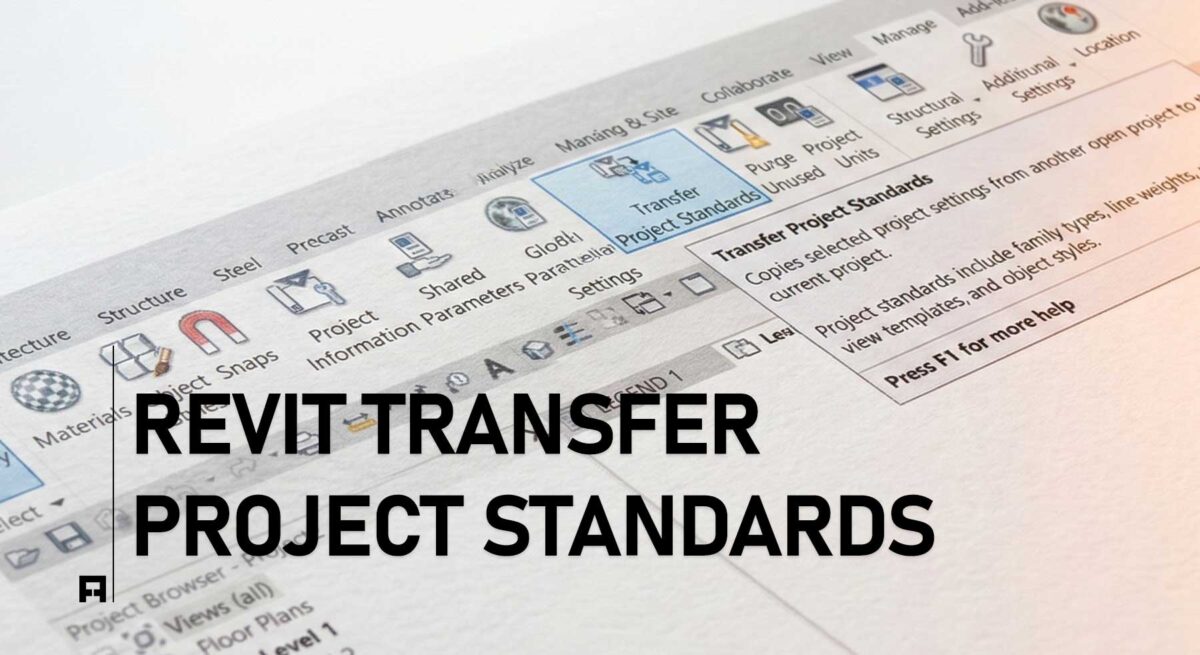
Imagine opening a colleague’s Revit model. Suddenly, you realize your custom text styles and view filters are missing.
Recreating these elements takes massive effort. In fact, it will cost you hours of repetitive, non-billable work. Furthermore, it often leads to messy graphic outputs.
Naturally, the best way to avoid this is to start right from day one. You should always use a professional Revit Template. However, what if you are already stuck in a messy project? Fortunately, professional BIM workflows offer a built-in solution.
In this guide by ALBE Studio, we will explain the Transfer Project Standards feature. Also, we will reveal the ultimate workflow secret: the Central Gallery file.
What are “Transfer Project Standards”?
The Transfer Project Standards tool is extremely powerful. First, it allows you to copy system families like wall types. Second, it copies global settings like line weights.
You simply pull these from a source file into your active model. Thus, it acts as a digital bridge. It ensures you can inject high-end aesthetics at any time. For more context on basic global standards, you can review the official Autodesk BIM guide.
💡 Pro Tip for BIM Managers: Never transfer “Everything” at once. Blindly copying all standards imports garbage data. Consequently, your file size will explode. Always be highly selective.
The Visual Approach: What is a Central Gallery File?
While the Transfer tool handles background settings well, it struggles with physical elements. For instance, you cannot easily transfer specific 2D families or visual material swatches.
Therefore, a Central Gallery File becomes invaluable.
So, what is a Central Gallery exactly? It is a specialized Revit file that serves as a visual exhibition. Instead of hunting through text menus, a Gallery lays everything out clearly. You can see every wall type and material sphere instantly.
If your current setup is poor, open your Central Gallery alongside your active project. From there, you have two great options:
- Visual Copy/Paste: First, select a beautiful wall in the Gallery. Next, press Ctrl+C. Finally, paste it into your active project. Revit automatically brings the exact materials with it.
- As a Transfer Source: Alternatively, use this highly organized file as your flawless “Source” for the Transfer tool.
How to Transfer Standards: Step-by-Step
To successfully copy settings, you need two things. You must have both the Source file and the Target file open together.
How to Transfer Revit Standards & Use a Gallery File
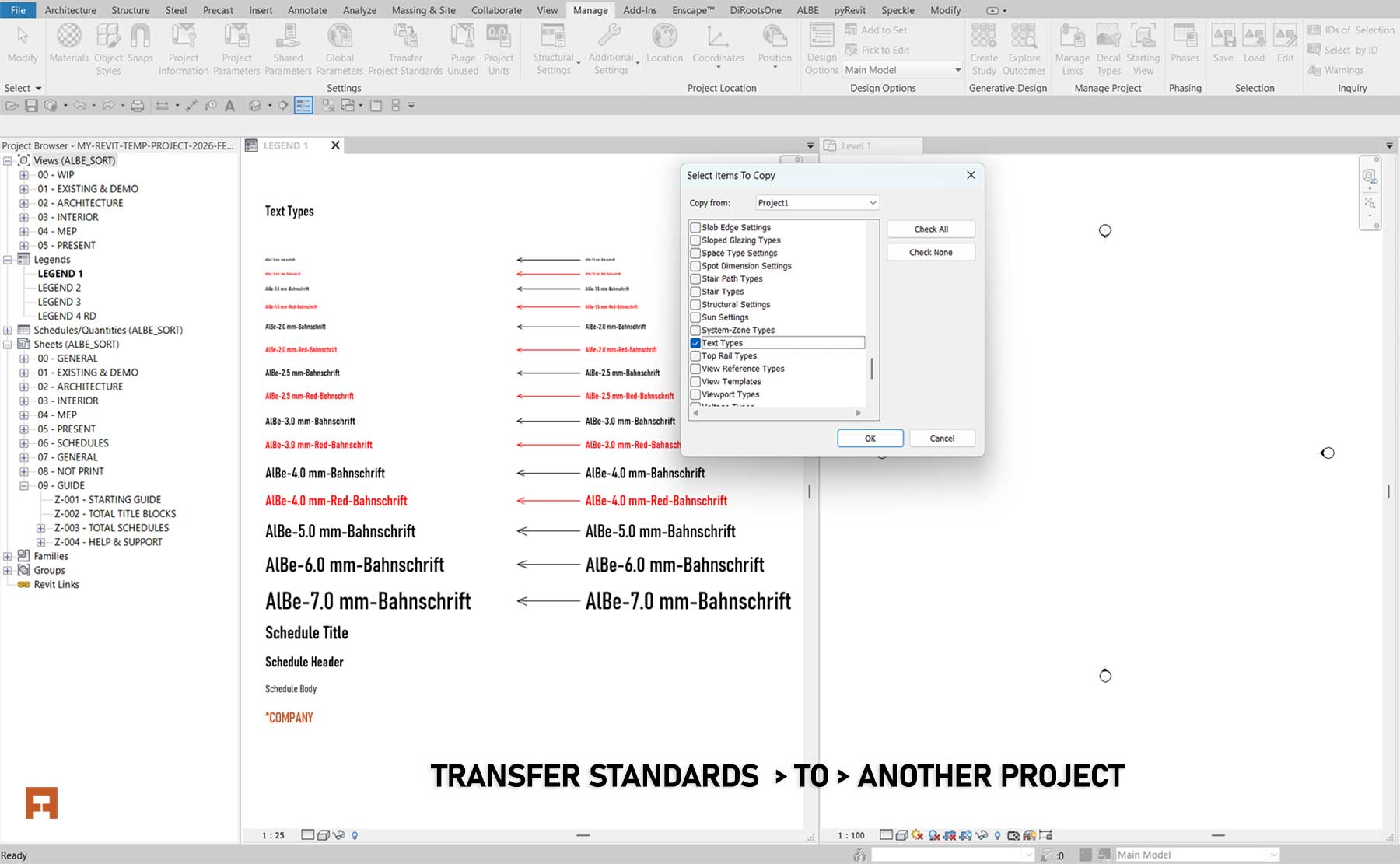
- Open Both Files: First, ensure your beautiful Gallery and your messy project are open. Make sure your Target project is active.
- Locate the Tool: Next, navigate to the main ribbon:
Manage → Settings Panel → Transfer Project Standards - Select the Source: A dialog box will appear. Click the “Copy from” menu. Then, select your Source file.
- Choose Your Categories: Initially, click Check None to clear the list. After that, manually check only the specific categories you need. For example, to achieve aesthetic interior layouts, transfer View Templates and Filters.
- Resolve Duplicates: Finally, click OK. If Revit finds elements with the same name, choose Overwrite. This seamlessly replaces bad target settings with your good ones.
The Missing Link: Your Master Source
The Transfer tool is incredibly fast. However, it has one major flaw. It is only as good as your source file. If your source file is chaotic, you just transfer chaos. To meet high industry standards, like those from the BIMForum, you need a flawless source.
Get the Ultimate Central Gallery & Template
Building a Central Gallery takes hundreds of hours. Fortunately, the ALBE PRO Template solves this instantly. It includes a fully engineered, visually stunning Central Gallery File. Therefore, you can start new projects flawlessly today.
Next Steps for Your Workflow
Mastering data transfer is a critical skill for architects. Before you transfer anything, ensure your base standards are perfectly aligned. Not sure if your standards are good enough?
Download our Ultimate Revit Template Checklist (Free PDF) to audit your files. Furthermore, you can discover more workflow systems in the ALBE Studio Shop.